
Minecraft Seed Finder Step-by-Step Guide
To find worlds with the Minecraft seed finder on mcseedmap.dev, set specific conditions such as nearby Villages, Strongholds, or specific biomes. By setting distance criteria in the Seed finder tab, the client-side finder scans candidate seeds rapidly inside your browser.
Open the Seed Finder on the Map
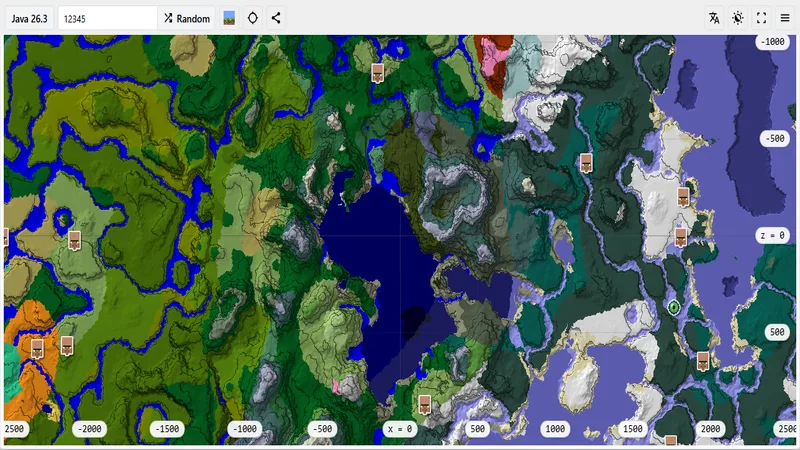
Setting Up Seed Finder Search Criteria
To access the finder, open the interactive map and click the Seed finder tab located under the map frame on a computer and in the scrolling tab bar on a phone.
The Seed finder panel provides an intuitive condition builder divided into two primary categories:
- Biomes: Select required ecological zones that must appear within your specified search radius.
- Structures: Choose necessary landmarks such as Villages, Ancient Cities, or Strongholds.
Under Search area, you can adjust the Radius input to set the search block distance around the center coordinates [0, 0]. Setting a radius between 500 and 1500 blocks yields responsive searches. If an entered seed contains only digits, it functions as that exact numerical value; any other text gets converted into a number with a fixed hash.
Choosing Biomes and Structure Proximity
To build your query, check the features you need in your new world:
- Select one or more biomes from the Biomes list, such as Cherry Grove, Badlands, or Ice Spikes.
- Select one or more structures from the Structures list, such as a Village or Pillager Outpost.
- Configure whether features must appear within the Overworld, Nether, or The End using the dimension selector.
Each selected criterion appears as an active requirement chip in the search summary. You can remove individual requirements at any time by clicking the small cross icon on each chip.
Executing Search and Loading Results
Once your conditions are configured, click Find next seed to begin evaluation:
- Our WebAssembly worker processes seeds in parallel directly on your machine without transmitting data across external servers.
- When the finder discovers a seed meeting all specified criteria, it appears in the results table beneath the controls.
- The results display the discovered seed number alongside calculated distances to each requested feature.
Click any result row to load that seed immediately into the interactive canvas. The viewer centers over the target coordinates, displaying the landmarks that matched your search.
Troubleshooting Seed Finder Queries
If your search runs slowly or yields no matching worlds, check these common recommendations:
- No matching seeds found: When no seeds match your chosen conditions within the search area, the finder keeps searching or displays the placeholder message until you broaden criteria. Expand the Radius value or uncheck a feature to widen the search.
- Search radius too small: Setting a very small search radius can leave few candidate locations in range. Increase the radius to 800 or 1200 blocks to give the finder more territory to inspect.
- Search stopped early: If the progress indicator stops, check your browser tab to make sure it remains active while calculations run.
Launch the Interactive Seed Finder
Learn how to inspect discovered structures in our Minecraft Seed Map Structure Finder Guide or review general viewer options in How to Use the Seed Map Viewer.