
Minecraft Seed Map Viewer Guide & Controls
To use the Minecraft seed map viewer on mcseedmap.dev, explore world biomes, structures, and coordinates directly inside your web browser. You can enter any numerical seed or text phrase to render an interactive map without installing third-party software.
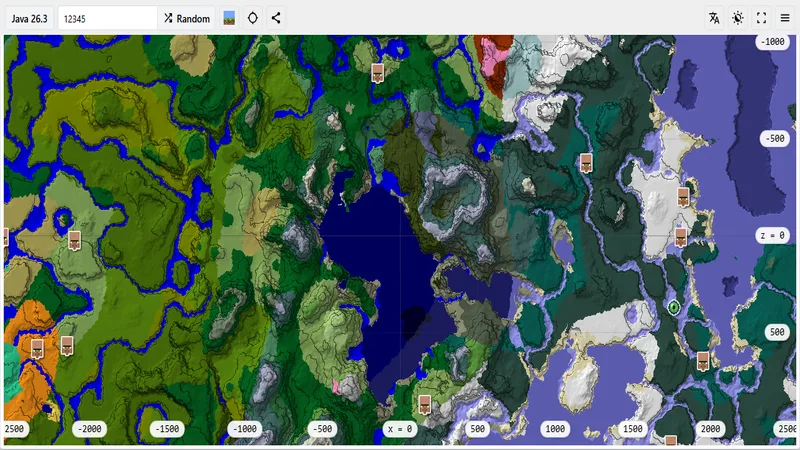
Launching a World Map
To start viewing a world, enter your seed value into the seed input box on the home screen. You can enter negative numbers, positive integers, or arbitrary text strings that the tool converts into numeric seeds automatically. When a seed input consists entirely of digits, the game takes that numerical value directly; any arbitrary text gets converted into a number using a fixed hash. Minecraft keeps seeds as 64-bit whole numbers, meaning 123 and -123 represent two entirely different worlds. Running the /seed command outputs the current world seed; single-player worlds allow anyone to inspect it, whereas multiplayer servers require operator permissions.
Next, choose your target edition by clicking either the Java Edition or Bedrock Edition card. Then open the version dropdown menu to pick the version corresponding to your save file. Click the yellow “Show the map!” button to load the full interactive viewer canvas.
Navigating and Reading Coordinates
Once the map loads, drag with your mouse or swipe on mobile screens to pan across the world. You can zoom in and out using your mouse wheel, pinch gestures, or the on-screen zoom buttons.
As you hover your cursor over the map canvas, the top caption bar updates dynamically to display your current position. The bottom coordinate rail displays the horizontal x value, while the right coordinate rail indicates the vertical z value. Origin markers highlight the central origin point where coordinates equal zero. On a computer or on a phone, you can click the Go to spawn button located in the top navigation bar to center your view on the Spawn point marker immediately.
Using Bottom Tabs and Sharing Links
Under the map frame on a computer and inside the scrolling tab bar on a phone, five tabs let you inspect world details:
- Seed and version: Review your active seed number, switch dimensions between Overworld, Nether, and The End, or test nearby sister seeds.
- Map settings: Toggle terrain hillshading, contour line overlays, coordinate grids, floating tooltips, and the Underground biomes toggle.
- Markers: Display icon overlays for structures such as Villages, Ancient Cities, and Strongholds, or toggle the Spawn point marker.
- Biomes: Browse colored biome swatches and highlight individual ecological zones across the canvas.
- Seed finder: Filter candidate worlds by setting required distances for selected points of interest.
To share your exact map location with friends, click the Share link button in the top bar on a computer, or open the Menu modal on a phone. The application copies a direct URL containing your active version, edition, seed, and coordinates to your clipboard.
Troubleshooting Common Display Issues
If the map displays empty tiles or an unexpected layout, check the following settings:
- Empty seed box: Leaving the seed box blank assigns a randomly generated seed to the world. Re-enter your intended seed text into the top bar input field to reload the area.
- Wrong edition selected: As a result of those independent placement calculations, a single seed can generate a structure at different coordinates on Bedrock than on Java. Double-check that your active edition card matches the platform where you created the world.
- No structures visible: Open the Markers tab and make sure that the specific structure checkboxes are active rather than cleared.
For platform-specific instructions, read our Seed Map Guide for Minecraft Java Edition and Seed Map Guide for Minecraft Bedrock Edition.