
Minecraft Seed Map Structure Finder Guide
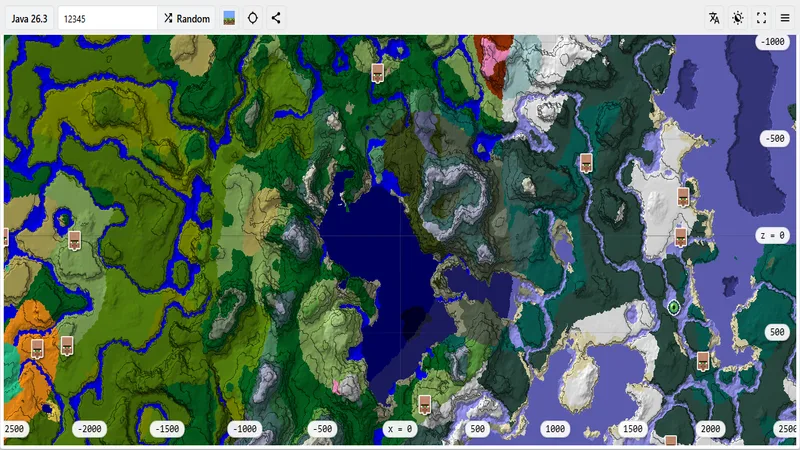
To use the Minecraft seed map structure finder on mcseedmap.dev, locate key landmarks such as Villages, Strongholds, and Ancient Cities across any world seed. In the tab bar under the map canvas, you can toggle individual icon layers and read their block coordinates directly.
Open the Structure Finder on the Map
Opening the Markers Tab
To inspect structure locations on your seed, first load your world in the interactive viewer. Under the map frame on a computer and in the horizontal tab bar on a phone, click Markers.
The Markers panel displays two general toggles alongside a grid of structure options:
- Spawn point: Displays a crosshair icon marking the world spawn point.
- Slime chunks: Highlights slime chunk areas with green overlay grids. In Java Edition, the slime chunk test relies on the world seed and chunk coordinates together, meaning slime chunks change between seeds. Every Bedrock world has the same slime chunks: our map works them out from where the chunk is, not from the seed.
- Structures list: Contains individual buttons for every structure in the active dimension.
The label at the top of the structures grid displays the total number of currently selected structure types.
Selecting and Filtering Structure Icons
You can customize which markers appear on the map canvas to prevent visual clutter:
- Click individual structure chips to enable or disable specific landmarks. Each chip displays a pixel icon alongside the structure name.
- Click Select all to highlight every available structure in the current dimension at once.
- Click Clear to hide all structure markers, leaving only biome boundaries and terrain visible.
Supported Overworld structures include Village, Stronghold, Ocean Monument, Shipwreck, Mineshaft, Ancient City, Amethyst Geode, Woodland Mansion, Desert Pyramid, Jungle Temple, Igloo, Pillager Outpost, Ruined Portal, Buried Treasure, Swamp Hut, Ocean Ruin, Trail Ruin, Trial Chambers, and Abandoned Camp. Village locations are determined along a 34-chunk grid, maintaining a minimum separation of 8 chunks between neighbors. Each chosen village position develops into a desert, plains, savanna, snowy, or taiga village. Ancient cities generate exclusively in the deep dark biome, beginning at elevation Y -27. In Java Edition, 128 strongholds are laid out in concentric rings encircling the center of the world.
When you switch dimensions to the Nether or The End using the top bar or Seed and version tab, the Markers panel updates automatically to display dimension structures such as Nether Fortress, Bastion Remnant, Ruined Portal, End City, and End Gateway.
Reading Coordinates and Copying Locations
When a structure marker appears on the canvas, hover your cursor over the icon. A floating tooltip displays the structure name and its exact block coordinates.
You can also read coordinates using the frame rails:
- The bottom rail tracks the horizontal x coordinate.
- The right rail tracks the vertical z coordinate.
Click on any structure marker to open a detailed popup. From here, you can review its exact location and copy coordinates directly into your clipboard.
Troubleshooting Missing Structure Markers
If structure markers fail to display on your canvas, consider these common troubleshooting factors:
- Markers cleared: Open the Markers tab and make sure that the intended structure chip has a highlighted border and is selected.
- Incompatible dimension selected: If looking for Nether Fortress or End City icons, switch to the corresponding dimension using the dimension dropdown menu.
- Zoom level too distant: When zoomed out very far, small markers cluster together. Zoom in closer to the target territory to separate nearby icons.
Find Structures on the Interactive Map
Explore biome environments in our How to Find Biomes from a Minecraft Seed guide or learn general navigation in How to Use the Seed Map Viewer.