
Minecraft Seed Map Java Edition Guide
To see a Minecraft seed map for Java Edition on mcseedmap.dev, explore precise world layouts rendered for this edition. By picking Java Edition on the home screen or inside the map top bar, you can examine world terrain, structure positions, and biome distributions across multiple game updates.
Selecting Java Edition and Version
To inspect a Java world, start on the home form and click the Java Edition card. The selected card displays a raised white background and active border highlighting.
Next, open the version selection menu to choose your target release. The picker lists all supported Java releases with the latest version marked at the top. If you already have the map open, you can switch editions and versions at any moment using the Version button in the top navigation bar or the Seed and version tab under the canvas.
Enter your numerical seed or world name into the seed input box. Any seed composed strictly of digits is parsed directly as a number; all other text inputs are converted into numbers through a fixed hash. Because Minecraft saves each seed as a 64-bit whole number, 123 and -123 correspond to two distinct worlds. The /seed command reveals the active world seed; solo players can view it freely, whereas server environments restrict it to operators. Then click the yellow “Show the map!” button to trigger client-side WebAssembly terrain calculations directly inside your browser.
Inspecting Overworld Terrain and Biomes
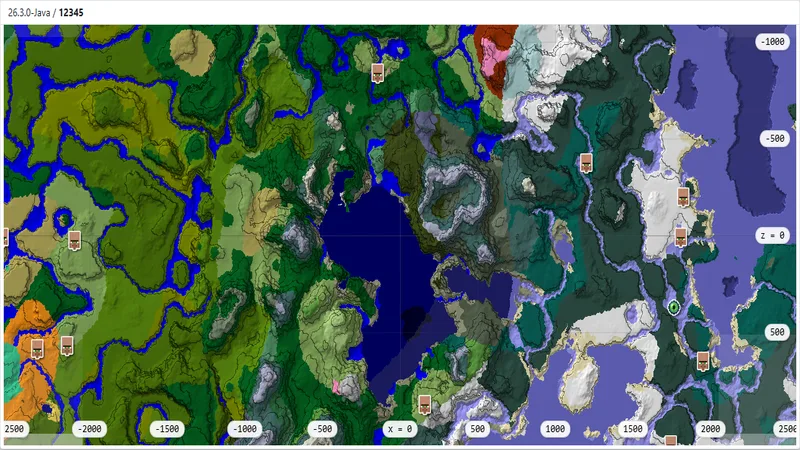
The interactive canvas renders the Java Overworld centered around coordinates [0, 0]. As you pan across the map, our engine calculates surface biome colors and terrain hillshading dynamically.
To examine specific ecological areas, open the Biomes tab located under the map frame on a computer and in the scrolling tab bar on a phone. You can browse through the list of biomes, review color swatches, or filter specific zones such as Lush Caves, Warm Ocean, or Badlands.
Under the Map settings tab, you can enable Contour lines to observe elevation trends across mountainous territory. You can also turn on Underground biomes with the vertical level slider to examine cave environments at negative heights without leaving your browser.
Using Coordinate Rails and Spawn Centering
Reading exact coordinates is straightforward with the dual rail system bordering the frame. The horizontal rail along the bottom edge tracks x coordinates, while the vertical rail along the right edge tracks z coordinates.
Highlighted origin markers indicate where x and z equal zero. As you move your mouse cursor over the landscape, the dynamic header bar displays the exact block coordinates and biome name under your pointer.
On a computer or on a phone, you can click the Go to spawn button in the top bar if you travel far from origin. The canvas pans smoothly back to the Spawn point marker location.
Troubleshooting Java Map Issues
If your Java seed map does not reflect what you expect, check these common points:
- Bedrock edition selected: Due to that separate placement mechanism, entering the exact same seed can produce different structure positions on Bedrock than on Java. Check that the edition indicator in the top bar displays Java Edition.
- Save file version mismatch: Pick the Minecraft version your save file was created in from the version dropdown menu.
- Spawn point position: The Spawn point marker indicates the world starting coordinates instead of the [0, 0] origin. Click the Go to spawn button in the top bar (on a computer or on a phone) or toggle Spawn point in the Markers tab to locate its dedicated marker icon.
Learn more about viewing controls in How to Use the Seed Map Viewer or see our Seed Map Guide for Minecraft Bedrock Edition.