
Minecraft Seed Map Bedrock Edition Guide
To see a Minecraft seed map for Bedrock Edition on mcseedmap.dev, inspect world terrain and structure locations directly in your browser. Whether playing on console, mobile, or Windows, you can enter your world seed to view biomes and coordinate rails without external downloads.
Choosing the Bedrock Edition Option
To view a Bedrock world, locate the edition selector on the home screen and click Bedrock Edition. The active selection raises with a light background to indicate that Bedrock calculations are active.
Next, click the version selector box to open the version modal. In the version picker, the first entry in the Bedrock list represents the latest supported release. Choose the version range matching your Bedrock installation.
Type your numeric world seed into the seed input box. In Bedrock worlds, seeds can be 32-bit or 64-bit integers. World seeds are stored as 64-bit integers, so positive 123 and negative -123 generate two separate world layouts. Submitting an empty seed field allocates a random seed to the world. Our map computes Bedrock structure coordinates using distinct Bedrock placement algorithms powered by its own random number generator. If your seed is negative, include the minus symbol in the box. Click the yellow “Show the map!” button to load the canvas.
Exploring Bedrock Biomes and Coordinates
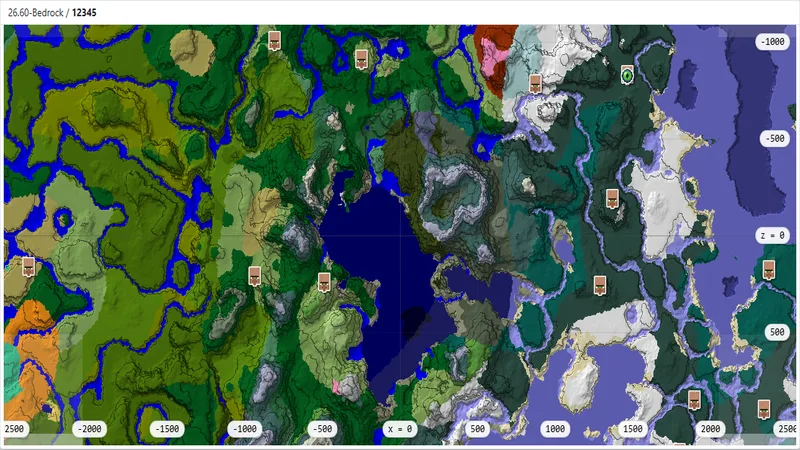
When the map appears, you see the Bedrock Overworld centered at coordinate origin [0, 0]. You can pan in any direction by dragging across the canvas and zoom with your mouse wheel or touch controls.
Notice the coordinate rails framing the map viewport:
- The bottom rail displays the x coordinate value at regular grid intervals.
- The right rail indicates the z coordinate value from north to south.
- The top header row reflects the exact coordinates and biome name under your cursor in real time.
On a computer or on a phone, you can click the Go to spawn button in the top bar. The viewer centers the camera over the Spawn point marker coordinates.
Activating Structure Overlays and Markers
To discover structures in your Bedrock world, click the Markers tab located under the map frame on a computer and in the tab bar on a phone.
Check individual icons to show specific landmarks across the map:
- Village: Display settlement icons across Plains, Desert, Savanna, and Taiga biomes.
- Ancient City: Display deep underground ancient city markers across mountainous territory.
- Trial Chambers: Highlight trial chamber markers across your world territory.
- Stronghold: Locate stronghold marker icons across your world map.
You can click Select all to view every structure marker at once, or click Clear to hide all structure markers and focus on biome borders.
Troubleshooting Bedrock Map Differences
If your Bedrock map does not match your expected world layout, review these common checks:
- Java edition selected by mistake: Because of that separate placement calculation, identical seeds can generate structures in different spots on Bedrock compared to Java.
- Mismatched seed sign: Ensure that negative signs were copied properly into the seed input box.
- Unloaded structures in view: If no icons appear, check the Markers tab to make sure that the relevant structure toggles are active.
Explore Bedrock Seeds on the Map
To learn more about general viewer controls, read our How to Use the Seed Map Viewer or see our Seed Map Guide for Minecraft Java Edition.