
Find Biomes From a Seed on the Map
To find biomes from a seed on mcseedmap.dev, open the Biomes tab located under the map frame on a computer and in the tab bar on a phone. The tool provides a complete palette of biome color swatches and filters that help you locate specific regions such as Cherry Grove, Dripstone Caves, and Warm Ocean.
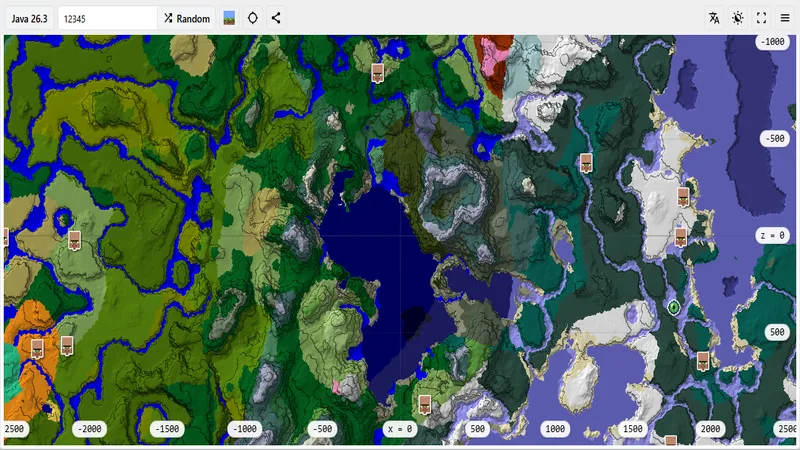
Exploring the Biomes Tab and Color Palette
When you launch any world seed on the viewer, the map canvas renders all terrain using distinct color representations for each biome type. To inspect which biomes exist across the area, click the Biomes tab in the bottom panel.
The Biomes panel organizes all recognized environments into convenient categories:
- Forests, Plains, and Taigas
- Deserts, Badlands, and Savannas
- Mountain peaks, Slopes, and Meadow plateaus
- Ocean depths, Rivers, and Shorelines
- Underground cave environments
Each biome entry includes a colored square matching the shade drawn on the map canvas alongside the official biome name.
Highlighting Specific Ecological Zones
Finding specific biomes across vast terrain is quick using the biome filter:
- Open the Biomes tab to view all available entries.
- Click on a specific biome name, such as Mangrove Swamp or Ice Spikes.
- The map canvas dims unselected regions and highlights matching territories with high contrast, making them easy to identify.
- Hover your pointer over the highlighted territory to read the exact coordinate values displayed in the top bar.
You can also read coordinates directly from the boundary rails framing the viewport: the bottom rail indicates the horizontal x axis, and the right rail shows the vertical z axis.
Viewing Underground Biomes and Cave Layers
You can view surface biomes or switch to cave layers in the map settings. The map can display underground layers alongside standard surface terrain.
To inspect underground spaces:
- Click the Map settings tab on the bottom toolbar.
- Turn on the Underground biomes toggle switch.
- Use the height level selector to choose your target elevation.
- The canvas updates immediately to display Dripstone Caves, Lush Caves, and other underground environments at that specific elevation. An ancient city starts at Y -27 and generates only inside the deep dark biome.
To switch back to surface biomes, toggle the Underground biomes option off in the Map settings panel.
Troubleshooting Biome Display Questions
If biome colors do not appear or look unfamiliar, check these common conditions:
- Biome highlight active: If large sections of the map appear dark or grey, click the active biome in the Biomes tab again to deselect the highlight filter.
- Selected version check: Check that your selected version in the top bar matches your world save file so the map draws the intended terrain layout.
- Underground view turned on: When Underground biomes is active, the surface terrain is replaced with cave biomes. Check Map settings and disable the Underground biomes toggle to return to surface view.
Search Biomes on the Interactive Map
Continue your exploration with our Minecraft Seed Map Structure Finder Guide or review general navigation in How to Use the Seed Map Viewer.